
⬅️ Tip: Use your browser’s back arrow to return to the previous page anytime.
User Settings
Save and Restore Your Customer’s Personal Settings via Memory Card
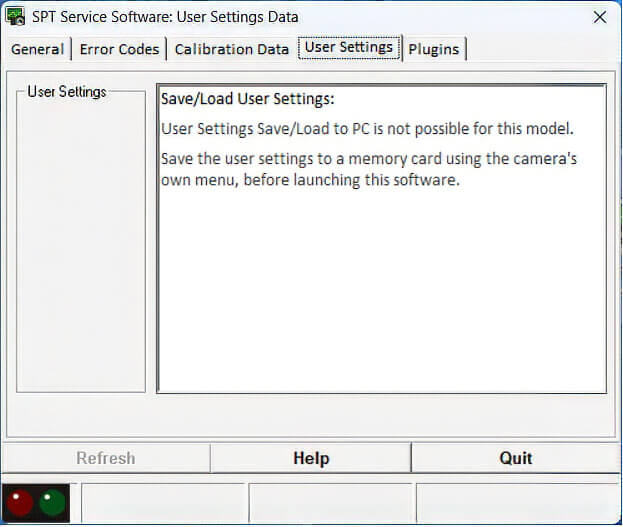
Unlike earlier models, saving and loading User Settings directly to a PC via USB is not supported on the Canon EOS R6 Mark III. Instead, Canon built profile backup functionality directly into the camera's internal menu system.
Before launching this software or performing any bench adjustments, back up the owner's configuration onto a CFexpress Type B or SD card:
How to Save & Restore Settings on the R6 Mark III:
- Insert a Memory Card: Place a formatted shop SD or CFexpress Type B card into the camera.
- Back Up Camera Settings: Open the camera's Set-up (Yellow Wrench) menu, select Save/load cam settings on card, choose Save to card, and confirm OK. This preserves the owner's Custom Shooting Modes (C1–C3), video presets, button customizations, and My Menu tabs.
- Back Up Wireless/Network Settings (Optional): If the customer uses FTP or Wi-Fi presets, open the Network (Purple) menu and select Save/load comm. settings on card.
- Restore After Service: Once your mechanical calibration or Standard Defaults reset is complete, return to Save/load cam settings on card and select Load from card to restore the owner's exact setup.
⚠️ Important Bench Notes:
- Back Up Before Resetting: Always save settings to a memory card before running the Standard Defaults Tab (included in the Defaults and Geographical Plugin) to prevent wiping customer configurations.
- Firmware & Model Matching: Settings files saved on a card can only be reloaded onto an EOS R6 Mark III running a compatible firmware version—if your repair includes a firmware update, save the settings after updating if possible.
⬅️ Done? Use your browser’s back arrow to return.