News

Welcome to our Technical Information Pages!

Canon EOS R5 Mark II General Tab | Next-Gen Mirrorless Bench Information

⬅️ Tip: Use your browser’s back arrow to return to the previous page anytime.

A Quick Information Check

&

Print the Camera FAX Report

With the General Tab, you can:

  1. View key camera details at a glance.
  2. Read the Shutter and Release Counts.
  3. Match the camera's electronic serial numbers to the case number if necessary.
  4. Print the Before and After Camera FAX Report

⚠️ Important: Always use a valid Canon serial number. Entering an invalid number may cause serious issues with your camera.


⬅️ Done? Use your browser’s back arrow to return.


Canon EOS R General Tab | Core Camera System Bench Information

⬅️ Tip: Use your browser’s back arrow to return to the previous page anytime.


A Quick Information Check

&

Print the Camera FAX Report


With the General Tab, you can:

  1. View key camera details at a glance.
  2. See the Shutter and Release Counts.
  3. Match the camera's electronic serial numbers to the Case number if necessary.
  4. Print the Before and After Service Camera FAX Report

⚠️ Important: Always use a valid Canon serial number. Entering an invalid number may cause serious issues with your camera.


⬅️ Done? Use your browser’s back arrow to return.


The Canon R6 Professional Advanced Software Temperature Plugin

⬅️ Tip: Use your browser’s back arrow to return to the previous page anytime.

Solve Hard-to-Diagnose Temperature Related Problems

With the Temperature Plugin, you can:

  1. Check and Test Key Sensors; on the Shutter, CMOS, Main PCB, and TFT Display and Top Cover.
  2. Eliminate guesswork when diagnosing temperature sensor issues.
  3. Quickly identify the source of temperature-related problems.
  4. Save time and minimize frustration during repairs.


Here are a few temperature-related issues

  • Soft focus on hot days – Caused by changes in Lens Flange/CMOS distance.
  • Random overexposure or underexposure – Due to fluctuations in AE current.
  • Dark images at high shutter speeds – Resulting from Shutter temperature changes.
  • Flash malfunctions – Triggered by temperature shifts in the EF unit.

⬅️ Done? Use your browser’s back arrow to return.


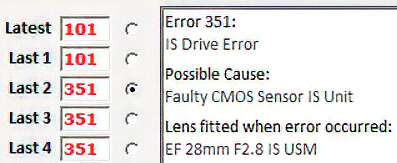
Canon Mirrorless Error Code Diagnostics & Camera FAX Reports

⬅️ Tip: Use your browser’s back arrow to return to the previous page anytime.


The Fast and Simple Way to Troubleshoot

Both Static and Intermittent Problems

With Internal Error Code, you can Troubleshoot using the following tools:

  1. The Last 8 Internal Error Code – The specific code for each error.
  2. The Probable Cause – A likely explanation for the error.
  3. The Lens on the Camera – Which lens was attached when the error occurred.
  4. The Date of the Error – When the problem happened.
  5. The Release Count at the Time of the Error – The camera’s usage count when the error occurred.
  6. Clear the Error Codes - after you complete your repair. 

The Internal Error Code Tab is a powerful tool that will save you time and frustration, even with hard-to-pin-down intermittent problems. 


When paired with Camera FAX, the Before and After Report becomes a powerful sales tool, highlighting the results of your work and building customer trust.


⬅️ Done? Use your browser’s back arrow to return.


The Defaults and Geographical Plugin

in the Canon R5 MK2 Professional Advanced Software

⬅️ Tip: Use your browser’s back arrow to return to the previous page anytime.
Click this tab bar to view each feature of the plugin
Standard Defaults
A Versatile Multi-Tool ….
Restore Factory Defaults, Avoid Calibration Conflicts, Prep the Camera for Resale

With Standard Defaults, you can:

  • Reset some or all settings back to Factory Defaults.
  • Eliminate Calibration conflicts by resetting User or Custom Functions to Factory Defaults.
  • Reset the camera’s language back to English if it defaults into Japanese.
  • Reset Factory Defaults for Resale, which also removes the Previous Owner’s Settings.

⚠️ Before resetting User and Custom functions to Factory Default, be sure to back up the customer’s setting using the User Tab in Essential.

Open Your Main Board Supply Line
Shop for the Best Price and Availability!
Regional Defaults

With Regional Defaults, you can:

  • Buy Main Boards globally without worrying about region-specific settings.
  • Quickly adjust your camera to match the correct settings for your country.

Regional Settings Include:

  • Video System (PAL/NTSC)
  • WiFi Configuration
  • User Language
  • Date Format

To to set Geographical Defaults enter the DS Model Number found the bottom of the camera. ⚠️ For this model, a new camera password may need be set before you can make further adjustments.

⚠️ On this model, resetting the Region WILL RESET ALL USER SETTING. Back up the customer’s settings using the User Tab in Essential

⬅️ Done? Use your browser’s back arrow to return.


Canon R5 MKII Shutter Calibration & Count Resets | SPT

⬅️ Tip: Use your browser’s back arrow to return to the previous page anytime.
 
Click this tab bar to view each feature of the plugin
Shutter Timing
Calibrate your shutter without expensive test equipment
Shutter Timing

Fine-tune high shutter speeds using histograms — no costly test gear required.

The software guides you step-by-step, saving time and effort.

⚠️ For accurate results, use a calibrated light source like a lightbox.

X Contact Timing
Check and adjust X Contact Timing if needed
X Contact Timing
Shutter Count
Reset the current Shutter Count to '0' after a shutter replacement
Shutter Count

View total Shutter Count and replacement history.
You can also reset the replacement history if needed.

Release Count
Release Count Matters
Release Count
This model’s software lets you reset the Release Count — essential when replacing the Main Board without original data.
The Release Count shows total camera use — not just shutter clicks.

⚠️ The Count number in the camera’s menu or read by Shutter Count software; is actually the Release Count. If you need to change that number, you will need to modify the Release Count value.

⬅️ Done? Use your browser’s back arrow to return.


Advanced Camera FAX Reports

Include Data from you're Advanced Plugins

⬅️ Tip: Use your browser’s back arrow to return to the previous page anytime.


Before and After Service Reports for your Customers

Promote your business with your custom Headers and Footers


New Feature: Integrated Manufacture Details

Our Camera FAX now includes a comprehensive Manufacture Details section. By analyzing the serial number, the software instantly identifies:

  • Production Data: Manufacturing Date, Factory, and Age.
  • Market Specifics: Destination Region and Quality Class.

Why this matters:

The Destination Region is a critical tool for any professional shop. It allows you to immediately identify "Grey Market" imports. Because these units often operate on Wi-Fi frequencies that are restricted or illegal in certain countries, providing this data protects both you and your customer from legal and compatibility issues.


Professional Reporting & Revenue Growth

  • Create New Income: Offer the Camera FAX as a fast, standalone diagnostic service to generate extra revenue.
  • Build Customer Trust: Provide professional "Before and After" reports to prove your work and justify your repair costs.
  • Verify Market Origin: Instantly identify "Grey Market" imports to avoid warranty issues and illegal Wi-Fi frequencies.
  • Faster Estimates: Quickly access shutter counts and internal error logs for more accurate and profitable repair quotes.

⬅️ Done? Use your browser’s back arrow to return.


Professional Camera FAX Reports

Canon Mirrorless Diagnostic Software

⬅️ Tip: Use your browser’s back arrow to return to the previous page anytime.


Before and After Service Reports for your Customers

Promote your business with your custom Headers and Footers


New Feature: Integrated Manufacture Details

Our Camera FAX now includes a comprehensive Manufacture Details section. By analyzing the serial number, the software instantly identifies:

  • Production Data: Manufacturing Date, Factory, and Age.
  • Market Specifics: Destination Region and Quality Class.

Why this matters:

The Destination Region is a critical tool for any professional shop. It allows you to immediately identify "Grey Market" imports. Because these units often operate on Wi-Fi frequencies that are restricted or illegal in certain countries, providing this data protects both you and your customer from legal and compatibility issues.


Professional Reporting & Revenue Growth

  • Create New Income: Offer the Camera FAX as a fast, standalone diagnostic service to generate extra revenue.
  • Build Customer Trust: Provide professional "Before and After" reports to prove your work and justify your repair costs.
  • Verify Market Origin: Instantly identify "Grey Market" imports to avoid warranty issues and illegal Wi-Fi frequencies.
  • Faster Estimates: Quickly access shutter counts and internal error logs for more accurate and profitable repair quotes.

⬅️ Done? Use your browser’s back arrow to return.


The Defaults and Geographical Plugin

in the Canon R50 Professional Advanced Software

⬅️ Tip: Use your browser’s back arrow to return to the previous page anytime.
Click this tab bar to view each feature of the plugin
Standard Defaults
Restore Factory Defaults, Avoid Calibration Conflicts, Prep the Camera for Resale
Standard Defaults

With Standard Defaults, you can:

  • Reset some or all settings back to Factory Defaults.
  • Eliminate Calibration conflicts by resetting User or Custom Functions to Factory Defaults.
  • Reset the camera’s language back to English if it defaults into Japanese.
  • Reset Factory Defaults for Resale, which also removes the Previous Owner’s Settings.

⚠️ Before resetting User and Custom functions to Factory Default, be sure to back up the customer’s setting using the User Tab in Essential.

Open Your Main Board Supply Line
Shop for the Best Price and Availability!
Regional Defaults

With Regional Defaults, you can:

  • Buy Main Boards globally without worrying about region-specific settings.
  • Quickly adjust your camera to match the correct settings for your country.

Regional Settings Include:

  • Video System (PAL/NTSC)
  • WiFi Configuration
  • User Language
  • Date Format

Whether servicing cameras, replacing parts, or preparing a camera for resale, the Defaults and Geographical Plugin makes the process quick and hassle-free.

⬅️ Done? Use your browser’s back arrow to return.


The Temperature Plugin

in the Canon R50 Professional Advanced Software

⬅️ Tip: Use your browser’s back arrow to return to the previous page anytime.

Solve Hard-to-Diagnose Temperature Related Problems

With the Temperature Plugin, you can:

  1. Check and Test Key Sensors; the Main Temperature and CMOS Unit sensors.
  2. Eliminate guesswork when diagnosing temperature sensor issues.
  3. Quickly identify the source of temperature-related problems.
  4. Save time and minimize frustration during repairs.


Here are a few temperature-related issues

  • Soft focus on hot days – Caused by changes in Lens Flange/CMOS distance.
  • Random overexposure or underexposure – Due to fluctuations in AE current.
  • Dark images at high shutter speeds – Resulting from Shutter temperature changes.
  • Flash malfunctions – Triggered by temperature shifts in the EF unit.

⬅️ Done? Use your browser’s back arrow to return.


The Shutter Calibration Plugin 

in The Canon EOS R50 Camera Software

⬅️ Tip: Use your browser’s back arrow to return to the previous page anytime.
 
Click this tab bar to view each feature of the plugin
Shutter Count

The Shutters for the EOS 50 are factory-preset! No adjustment is possible!

Shutter Count
  • View total Shutter Count and replacement history.
  • Reset the Shutter Count to Zero / 0 after installing a new shutter.
Release Count
Release Count Matters
Release Count
This model’s software lets you reset the Release Count — essential when replacing the Main Board without original data.
⚠️ The Release Count shows total camera use — This is the number displayed by the Camera Menu.

⬅️ Done? Use your browser’s back arrow to return.


Canon EOS R50 General Tab | Compact Content-Creator Bench Information

⬅️ Tip: Use your browser’s back arrow to return to the previous page anytime.

A Quick Information Check

&

Print the Camera FAX Report

With the General Tab, you can:

  1. View key camera details at a glance.
  2. Read the Shutter and Release Counts.
  3. Match the camera's electronic serial numbers to the case number if necessary.
  4. Print the Before and After Camera FAX Report

⚠️ Important: Always use a valid Canon serial number. Entering an invalid number may cause serious issues with your camera.


⬅️ Done? Use your browser’s back arrow to return.


The Defaults and Geographical Plugin

in the Canon R8 Professional Advanced Software

⬅️ Tip: Use your browser’s back arrow to return to the previous page anytime.
Click this tab bar to view each feature of the plugin
Standard Defaults
A Versatile Multi-Tool ….
Restore Factory Defaults, Avoid Calibration Conflicts, Prep the Camera for Resale
Standard Defaults

With Standard Defaults, you can:

  • Reset some or all settings back to Factory Defaults.
  • Eliminate Calibration conflicts by resetting User or Custom Functions to Factory Defaults.
  • Reset the camera’s language back to English if it defaults into Japanese.
  • Reset Factory Defaults for Resale, which also removes the Previous Owner’s Settings.

⚠️ Before resetting User and Custom functions to Factory Default, be sure to back up the customer’s setting using the User Tab in Essential.

Open Your Main Board Supply Line
Shop for the Best Price and Availability!
Regional Defaults

With Regional Defaults, you can:

  • Buy Main Boards globally without worrying about region-specific settings.
  • Quickly adjust your camera to match the correct settings for your country.

Regional Settings Include:

  • Video System (PAL/NTSC)
  • WiFi Configuration
  • User Language
  • Date Format

Whether servicing cameras, replacing parts, or preparing a camera for resale, the Defaults and Geographical Plugin makes the process quick and hassle-free.

⬅️ Done? Use your browser’s back arrow to return.


The Temperature Plugin

in the Canon R8 Professional Advanced Software

⬅️ Tip: Use your browser’s back arrow to return to the previous page anytime.

Solve Hard-to-Diagnose Temperature Related Problems

With the Temperature Plugin, you can:

  1. Check and Test Key Sensors; on the Shutter, CMOS, Main PCB, and TFT Display Cover.
  2. Eliminate guesswork when diagnosing temperature sensor issues.
  3. Quickly identify the source of temperature-related problems.
  4. Save time and minimize frustration during repairs.


Here are a few temperature-related issues

  • Soft focus on hot days – Caused by changes in Lens Flange/CMOS distance.
  • Random overexposure or underexposure – Due to fluctuations in AE current.
  • Dark images at high shutter speeds – Resulting from Shutter temperature changes.
  • Flash malfunctions – Triggered by temperature shifts in the EF unit.

⬅️ Done? Use your browser’s back arrow to return.


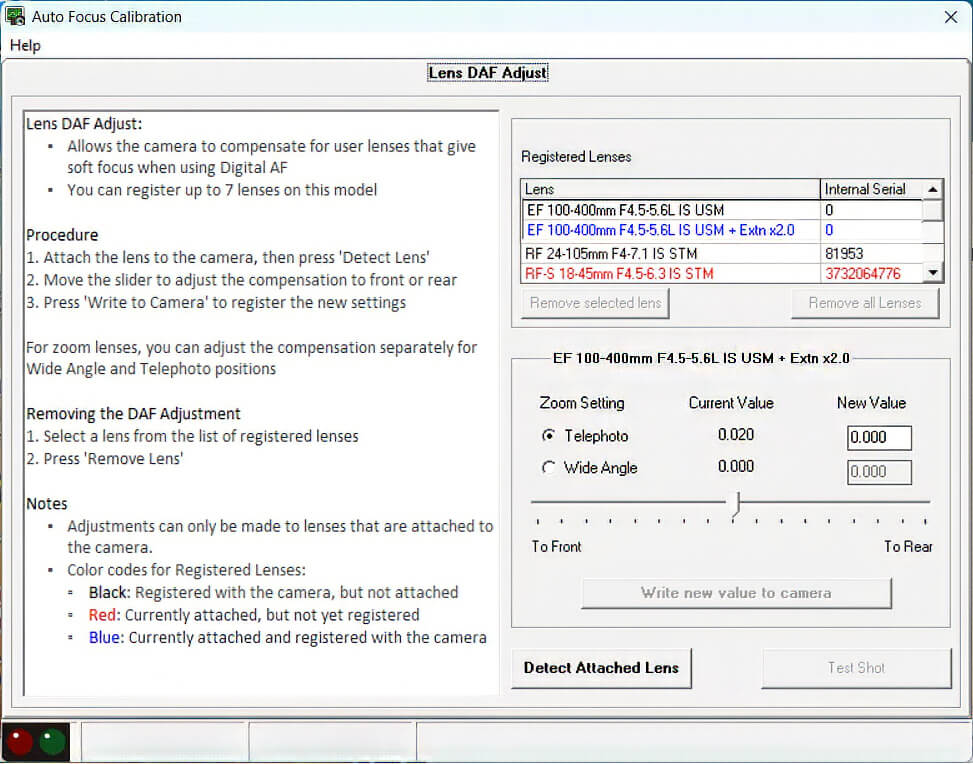
Canon Mirrorless Autofocus Calibration & Lens-to-Body Pairing Software

⬅️ Tip: Use your browser’s back arrow to return to the previous page anytime.


Mirrorless AF Realities: A Photographer’s Unedited Review

“I was told it was Impossible”  … “How glad I am that I purchased the software”


Adjusts both Lens and Lens + Extender


With the Lens Focus Calibration Plugin, you can:

  1. Offer a standalone Auto Focus Adjustment Service to address common autofocus issues.
  2. Pair your customers lens to their camera body for optimized autofocus.
  3. Adjust both Prime (fixed focal length) and Zoom lenses for precision performance.
  4. Adjust both Wide and Telephoto settings on Zoom lenses.
  5. Adjust AF for Lenses used with Extenders
  6. Register up to 7 lenses to the camera body for streamlined operation.
  7. Add or remove lenses as needed, allowing for flexible customization.
  8. View a color-coded list of lenses, including those that are Registered but not attached, Attached but not yet Registered, and Currently attached and Registered for quick and efficient management.


Sharper Auto Focus

Soft autofocus is a common complaint among mirrorless camera owners. Many photographers find that while some lenses focus perfectly, others may front- or back-focus on the same camera body, producing soft images.

This isn’t a flaw in the camera or the lens — it’s the result of that specific lens–body combination.

With the Auto Focus Calibration Plugin, you can easily fine-tune each lens to the customer’s camera body, restoring sharp, accurate focus. The process is simple and efficient — just the camera, lens, and the standard 3D target included with the software.

This plugin offers a fast, effective way to expand your service capabilities and deliver precision results that customers can see.

New: Many users noticed that images were perfectly sharp without an extender but softened when one was attached. The latest Pro Advanced upgrade now solves this by allowing separate AF adjustments for each setup — with and without extenders.


⬅️ Done? Use your browser’s back arrow to return.


The Shutter Calibration Plugin 

in The Canon EOS R8 Camera Software

⬅️ Tip: Use your browser’s back arrow to return to the previous page anytime.
 
Click this tab bar to view each feature of the plugin
Shutter Count
Reset the current Shutter Count to ‘0’ after a shutter replacement
Shutter Count
  • View total Shutter Count and replacement history.
  • Reset the Shutter Count to Zero / 0 after installing a new shutter.
Release Count
Release Count Matters
Release Count
This model’s software lets you reset the Release Count — essential when replacing the Main Board without original data.
⚠️ The Release Count shows total camera use — This is the number displayed by the Camera Menu.

⬅️ Done? Use your browser’s back arrow to return.


The Defaults and Geographical Plugin

in the Canon R6 MK2 Professional Advanced Software

⬅️ Tip: Use your browser’s back arrow to return to the previous page anytime.
Click this tab bar to view each feature of the plugin
Standard Defaults
A Versatile Multi-Tool ….
Restore Factory Defaults, Avoid Calibration Conflicts, Prep the Camera for Resale
Standard Defaults

With Standard Defaults, you can:

  • Reset some or all settings back to Factory Defaults.
  • Eliminate Calibration conflicts by resetting User or Custom Functions to Factory Defaults.
  • Reset the camera’s language back to English if it defaults into Japanese.
  • Reset Factory Defaults for Resale, which also removes the Previous Owner’s Settings.

⚠️ Before resetting User and Custom functions to Factory Default, be sure to back up the customer’s setting using the User Tab in Essential.

Open Your Main Board Supply Line
Shop for the Best Price and Availability!
Regional Defaults

With Regional Defaults, you can:

  • Buy Main Boards globally without worrying about region-specific settings.
  • Quickly adjust your camera to match the correct settings for your country.

Regional Settings Include:

  • Video System (PAL/NTSC)
  • WiFi Configuration
  • User Language
  • Date Format

Whether servicing cameras, replacing parts, or preparing a camera for resale, the Defaults and Geographical Plugin makes the process quick and hassle-free.

⬅️ Done? Use your browser’s back arrow to return.


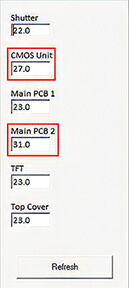
The Temperature Plugin

in the Canon R6 MKII Professional Advanced Software

⬅️ Tip: Use your browser’s back arrow to return to the previous page anytime.

Solve Hard-to-Diagnose Temperature Related Problems

With the Temperature Plugin, you can:

  1. Check and Test Key Sensors; on the Shutter, CMOS, Main PCB, and TFT.
  2. Eliminate guesswork when diagnosing temperature sensor issues.
  3. Quickly identify the source of temperature-related problems.
  4. Save time and minimize frustration during repairs.


Here are a few temperature-related issues

  • Soft focus on hot days – Caused by changes in Lens Flange/CMOS distance.
  • Random overexposure or underexposure – Due to fluctuations in AE current.
  • Dark images at high shutter speeds – Resulting from Shutter temperature changes.
  • Flash malfunctions – Triggered by temperature shifts in the EF unit.

⬅️ Done? Use your browser’s back arrow to return.


Canon R6 MK II Shutter Calibration & Count Resets | SPT

⬅️ Tip: Use your browser’s back arrow to return to the previous page anytime.
 
Click this tab bar to view each feature of the plugin
Shutter Timing
Calibrate your shutter without expensive test equipment
Shutter Timing

Fine-tune high shutter speeds using histograms — no costly test gear required.

The software guides you step-by-step, saving time and effort.

⚠️ For accurate results, use a calibrated light source like a lightbox.

X Contact Timing
Check and adjust X Contact Timing if needed
X Contact Timing
Shutter Count
Reset the current Shutter Count to '0' after a shutter replacement
Shutter Count

View total Shutter Count and replacement history.
You can also reset the replacement history if needed.

Release Count
Release Count Matters
Release Count
This model’s software lets you reset the Release Count — essential when replacing the Main Board without original data.
The Release Count shows total camera use — not just shutter clicks.

⚠️ The Count number in the camera’s menu or read by Shutter Count software; is actually the Release Count. If you need to change that number, you will need to modify the Release Count value.

⬅️ Done? Use your browser’s back arrow to return.
 

Canon EOS R6 Mark II General Tab | High-Speed Mirrorless Bench Information

⬅️ Tip: Use your browser’s back arrow to return to the previous page anytime.

A Quick Information Check

&

Print the Camera FAX Report

With the General Tab, you can:

  1. View key camera details at a glance.
  2. Read the Shutter and Release Counts.
  3. Match the camera's electronic serial numbers to the case number if necessary.
  4. Print the Before and After Camera FAX Report

⚠️ Important: Always use a valid Canon serial number. Entering an invalid number may cause serious issues with your camera.


⬅️ Done? Use your browser’s back arrow to return.
 

Saving the Camera's Calibration Data File

⬅️ Tip: Use your browser’s back arrow to return to the previous page anytime.


Save Yourself Trouble Later — Use the Calibration Tab in Essential First


Before doing anything else, we recommend backing up your camera’s Calibration Data using the Calibration Data Tab in Essential. It’s the simplest and most direct way to save your data—and it gives you an easy-to-access backup for the future.

While the Main Board Replacement Plugin also saves Calibration Data, it’s part of a larger, more complex process, and the camera data backup file it creates is stored in a hidden folder. That makes it harder to find or use later if you need it.

Bottom line:
Start with the Calibration Tab in Essential. It’s quicker, easier, and gives you a clean backup you can rely on if something goes wrong down the road.


The Defaults and Geographical Plugin

in the Canon R100 Professional Advanced Software

⬅️ Tip: Use your browser’s back arrow to return to the previous page anytime.
Click this tab bar to view each feature of the plugin
Standard Defaults
A Versatile Multi-Tool ….
Restore Factory Defaults, Avoid Calibration Conflicts, Prep the Camera for Resale
Standard Defaults

With Standard Defaults, you can:

  • Reset some or all settings back to Factory Defaults.
  • Eliminate Calibration conflicts by resetting User or Custom Functions to Factory Defaults.
  • Reset the camera’s language back to English if it defaults into Japanese.
  • Reset Factory Defaults for Resale, which also removes the Previous Owner’s Settings.

⚠️ Before resetting User and Custom functions to Factory Default, be sure to back up the customer’s setting using the User Tab in Essential.

Open Your Main Board Supply Line
Shop for the Best Price and Availability!
Regional Defaults

With Regional Defaults, you can:

  • Buy Main Boards globally without worrying about region-specific settings.
  • Quickly adjust your camera to match the correct settings for your country.

Regional Settings Include:

  • Video System (PAL/NTSC)
  • WiFi Configuration
  • User Language
  • Date Format

Whether servicing cameras, replacing parts, or preparing a camera for resale, the Defaults and Geographical Plugin makes the process quick and hassle-free.

⬅️ Done? Use your browser’s back arrow to return.


The Shutter Calibration Plugin in The Canon EOS R100 Software

⬅️ Tip: Use your browser’s back arrow to return to the previous page anytime.
Click this tab bar to view each feature of the plugin
Shutter Count

The Shutters for the EOS R100 are factory-preset! No adjustment is possible!

Reset the current Shutter Count to '0' after a new shutter replacement

Shutter Count

• When installing a new shutter, you should reset the shutter count to zero.

  • For used shutters, restore the count to its previous value.
  • You can also view and, if needed, reset the Shutter Replacement History.
Release Count
Release Count

✅ This model lets you reset the Release Count - essential when replacing the Main Board without original data.

The Release Count shows total camera use — not just shutter clicks.

⚠️ The Count number in the camera’s menu or read by Shutter Count software; is actually the Release Count. If you need to change that number, you will need to modify the Release Count value.

⬅️ Done? Use your browser’s back arrow to return.


The Temperature Plugin 

in the Canon R100 Professional Advanced Software

⬅️ Tip: Use your browser’s back arrow to return to the previous page anytime.

Solve Hard-to-Diagnose Temperature Related Problems

With the Temperature Plugin, you can:

  1. Check and Test Key Sensors; on the Shutter and CMOS Unit.
  2. Eliminate guesswork when diagnosing temperature sensor issues.
  3. Quickly identify the source of temperature-related problems.
  4. Save time and minimize frustration during repairs.


Here are a few temperature-related issues

  • Soft focus on hot days – Caused by changes in Lens Flange/CMOS distance.
  • Random overexposure or underexposure – Due to fluctuations in AE current.
  • Dark images at high shutter speeds – Resulting from Shutter temperature changes.
  • Flash malfunctions – Triggered by temperature shifts in the EF unit.
 

⬅️ Done? Use your browser’s back arrow to return.


Canon EOS R100 General Tab | Entry-Level Mirrorless Bench Informtion

⬅️ Tip: Use your browser’s back arrow to return to the previous page anytime.

A Quick Information Check

&

Print the Camera FAX Report

With the General Tab, you can:

  1. View key camera details at a glance.
  2. Read the Shutter and Release Counts.
  3. Match the camera's electronic serial numbers to the case number if necessary.
  4. Print the Before and After Camera FAX Report

⚠️ Important: Always use a valid Canon serial number. Entering an invalid number may cause serious issues with your camera.

⬅️ Done? Use your browser’s back arrow to return.


Canon EOS RP Shutter Calibration | Testing & Release Count Reset

⬅️ Tip: Use your browser’s back arrow to return to the previous page anytime.
Click this tab bar to view each feature of the plugin
Shutter Timing

The Shutters for the EOS RP are factory-preset! No adjustment is possible!

The Shutter Timing Tab in this model is used for testing only

Shutter Timing

• Follow the directions in the software window to Test Shutter Speed.

Release Count
Reset the Release Count to ‘0’ after a shutter replacement
Release Count

✅ Because the model does not have a separate shutter count, you should reset the Release Count to ‘0’ after a shutter replacement

  • If you are replacing with a good used shutter, set the Release Count to the number of activations on that shutter.
  • After your change the release count, you will be prompted to Update the ‘Previous Shutters History.’ You should click ‘Yes’ to maintain an accurate record of the camera’s wear.

⬅️ Done? Use your browser’s back arrow to return.


The Defaults and Geographical Plugin

In the Canon RP Professional Advanced Software

⬅️ Tip: Use your browser’s back arrow to return to the previous page anytime.
Click this tab bar to view each feature of the plugin
A Versatile Multi-Tool ….
Restore Factory Defaults, Avoid Calibration Conflicts, Prep the Camera for Resale
Standard Defaults

With Standard Defaults, you can:

  • Reset some or all settings back to Factory Defaults.
  • Eliminate Calibration conflicts by resetting User or Custom Functions to Factory Defaults.
  • Reset the camera’s language back to English if it defaults into Japanese.
  • Reset Factory Defaults for Resale, which also removes the Previous Owner’s Settings.

⚠️ Before resetting User and Custom functions to Factory Default, be sure to back up the customer’s setting using the User Tab in Essential.

Open Your Main Board Supply Line
Shop for the Best Price and Availability!
Regional Defaults

With Regional Defaults, you can:

  • Buy Main Boards globally without worrying about region-specific settings.
  • Quickly adjust your camera to match the correct settings for your country.

Regional Settings Include:

  • Video System (PAL/NTSC)
  • WiFi Configuration
  • User Language
  • Date Format

Whether servicing cameras, replacing parts, or preparing a camera for resale, the Defaults and Geographical Plugin makes the process quick and hassle-free.

⬅️ Done? Use your browser’s back arrow to return.


The Temperature Plugin 

in the Canon RP Professional Advanced Software

⬅️ Tip: Use your browser’s back arrow to return to the previous page anytime.

Solve Hard-to-Diagnose Temperature Related Problems

With the Temperature Plugin, you can:

  1. Check and Test Key Sensors; on the Shutter, Main Board, CMOS and TFT Display.
  2. Eliminate guesswork when diagnosing temperature sensor issues.
  3. Quickly identify the source of temperature-related problems.
  4. Save time and minimize frustration during repairs.


Here are a few temperature-related issues

  • Soft focus on hot days – Caused by changes in Lens Flange/CMOS distance.
  • Random overexposure or underexposure – Due to fluctuations in AE current.
  • Dark images at high shutter speeds – Resulting from Shutter temperature changes.
  • Flash malfunctions – Triggered by temperature shifts in the EF unit.
 

⬅️ Done? Use your browser’s back arrow to return.


Canon EOS RP General Tab | Electronic Release Count & Bench Information

⬅️ Tip: Use your browser’s back arrow to return to the previous page anytime.

A Quick Information Check

&

Print the Camera FAX Report


With the General Tab, you can:

  1. View key camera details at a glance.
  2. See the Release Count.  The Shutter Count is not available on this model!
  3. Match the camera's electronic serial numbers to the Case number if necessary.
  4. Print the Before and After Service Camera FAX Report

⚠️ Important: Always use a valid Canon serial number. Entering an invalid number may cause serious issues with your camera.


⬅️ Done? Use your browser’s back arrow to return.


The CMOS Plugin in the Canon EOS RP Professional Advanced Software

Exposure Adjustment / Recalibrating the CMOS

⬅️ Tip: Use your browser’s back arrow to return to the previous page anytime.

Exposure Adjustment is a two step process:

  1. Lightbox/Lens Compensation: Creates a compensation file for your model.
  2. CMOS Calibration: Adjust exposure by recalibrating the CMOS.
Click this tab bar to view each feature of the plugin
CMOS Calibration – Takes About 10 Minutes
CMOS Calibration
In mirrorless cameras, exposure relies entirely on CMOS Calibration—they do not use a separate light meter. While the calibration process takes four steps, our software handles most of the work for you.

Just follow the prompts in the software window. As you progress, each active section will highlight in red, and detailed instructions will appear onscreen. The process is smooth, guided, and takes about 10 minutes.

Tools Required:

  • Light Box
  • EF to RF Lens Mount Adapter
  • EF 50mm f/1.8 STM Lens
  • The Compensation File you created in the Lightbox / Lens Compensation step

You’ll find exposure adjustment fast, easy, and a profitable Repair Service.

⬅️ Done? Use your browser’s back arrow to return.