News

Welcome to our Technical Information Pages!

The Defaults and Geographical Plugin

in the Canon R50 Professional Advanced Software

⬅️ Tip: Use your browser’s back arrow to return to the previous page anytime.
Click this tab bar to view each feature of the plugin
Standard Defaults
Restore Factory Defaults, Avoid Calibration Conflicts, Prep the Camera for Resale
Standard Defaults

With Standard Defaults, you can:

  • Reset some or all settings back to Factory Defaults.
  • Eliminate Calibration conflicts by resetting User or Custom Functions to Factory Defaults.
  • Reset the camera’s language back to English if it defaults into Japanese.
  • Reset Factory Defaults for Resale, which also removes the Previous Owner’s Settings.

⚠️ Before resetting User and Custom functions to Factory Default, be sure to back up the customer’s setting using the User Tab in Essential.

Buy Main Boards Internationally - Shop for the Best Price and Availability!
Regional Defaults

With Regional Defaults, you can:

  • Buy Main Boards globally without worrying about region-specific settings.
  • Quickly adjust your camera to match the correct settings for your country.

Regional Settings Include:

  • Video System (PAL/NTSC)
  • WiFi Configuration
  • User Language
  • Date Format

Whether servicing cameras, replacing parts, or preparing a camera for resale, the Defaults and Geographical Plugin makes the process quick and hassle-free.

⬅️ Done? Use your browser’s back arrow to return.


The Temperature Plugin

in the Canon R50 Professional Advanced Software

⬅️ Tip: Use your browser’s back arrow to return to the previous page anytime.

Solve Hard-to-Troubleshoot Temperature Related Problems

With the Temperature Plugin, you can:

  1. Check and Test Key Sensors; the Main Temperature and CMOS Unit sensors.
  2. Eliminate guesswork when diagnosing temperature sensor issues.
  3. Quickly identify the source of temperature-related problems.
  4. Save time and minimize frustration during repairs.


Here are a few temperature-related issues

  • Soft focus on hot days – Caused by changes in Lens Flange/CMOS distance.
  • Random overexposure or underexposure – Due to fluctuations in AE current.
  • Dark images at high shutter speeds – Resulting from Shutter temperature changes.
  • Flash malfunctions – Triggered by temperature shifts in the EF unit.

Troubleshooting Example

Tools

Troubleshooting

Temperature Plugin

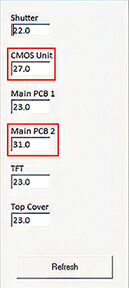
Temperature Plugin: Shows real-time sensor readings against normal room temperature (23°C):

  • Normal Benchmark: 23°C
  • CMOS Unit: 27°C (Elevated)
  • Main Board 2: 31°C (Overheating / Over-range)

Error Code Tab

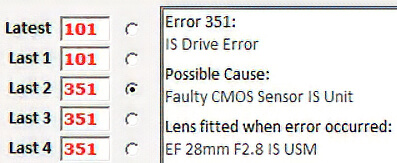
Error History Tab: Displays Error 351 — Possible cause: Faulty CMOS Sensor Unit.

The live data pinpoints the thermal failure immediately, confirming the cause of the Error 351 shutdown.

⬅️ Done? Use your browser’s back arrow to return.
 

The Shutter Calibration Plugin 

in The Canon EOS R50 Camera Software

⬅️ Tip: Use your browser’s back arrow to return to the previous page anytime.
 
Click this tab bar to view each feature of the plugin
Shutter Count

The Shutters for the EOS 50 are factory-preset! No adjustment is possible!

Shutter Count
  • View total Shutter Count and replacement history.
  • Reset the Shutter Count to Zero / 0 after installing a new shutter.
Release Count
Change the Count number you customer sees in their Camera Menu
Release Count

Camera Menu & Shutter Count Apps

The number shown in the Camera Menu and by Shutter-Count apps is the Total Release Count.

✅ YES — You can change the Total Release Count on this model.

⬅️ Done? Use your browser’s back arrow to return.
 

Canon EOS R50 General Tab | Compact Content-Creator Bench Information

⬅️ Tip: Use your browser’s back arrow to return to the previous page anytime.


General


Quick Information Check & the Camera FAX Report

With the General Tab, you can:

  1. View key camera details at a glance.
  2. Read the Shutter and Release Counts.
  3. Match the camera's electronic serial numbers to the case number if necessary.
  4. Print the Before and After Camera FAX Report

⚠️ Important: Always use a valid Canon serial number. Entering an invalid number may cause serious issues with your camera.


Camera Menu & Shutter Count Apps

The number shown in the Camera Menu and by Shutter-Count apps is the Total Release Count.


✅ YES — You can change the Total Release Count on this model.


⬅️ Done? Use your browser’s back arrow to return.