After completing the check out Shopping Cart process:
- Click the Download Page link above your invoice to take you to your download page.
- Click the Download Arrow under your “Demonstration Software" to begin your download.
1

2

Downloading Canon Camera Demonstration Software
After completing the check out Shopping Cart process:
1
2
The Shutter Calibration Plugin
in Canon EOS R5 Professional Advanced Software
Calibrate your shutter without expensive test Equipment

With the Shutter Plugin, you can:
Understanding Release Count
The Total Release Count is a crucial record of the camera’s usage! Total Release Count includes all activations, including shutter actuations, live view usage, and other functions that trigger the release mechanism.
⚠️ Consumers often ask for the Shutter Count to gauge usage, actually meaning ‘they want the Release Count’. You should be aware that many third-party softwares mislabel the Release Count as Shutter Count, which does create confusion.
⚠️ Only adjust Release Count when replacing the Main Board without the original data, to ensure that it matches the previous board's count.
Shutter Calibration
The Shutter Plugin utilizes histograms for fast, professional shutter speed adjustments—eliminating the need for costly test equipment.
⚠️ Histograms require a calibrated light source, such as a Lightbox, for accurate results.
Designed for efficiency, the software guides you through the process, saving time and effort.
⬅️ Done? Use your browser’s back arrow to return.
The Temperature Plugin
in the Canon R10 Professional Advanced Software
Temperature
Solve Hard-to-Troubleshoot Temperature Related Problems

With the Temperature Plugin, you can:
Here are a few temperature-related issues
Troubleshooting Example
| Tools |
Troubleshooting |
|
Temperature Plugin
|
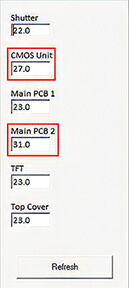
Temperature Plugin: Shows real-time sensor readings against normal room temperature (23°C):
|
|
Error Code Tab
|
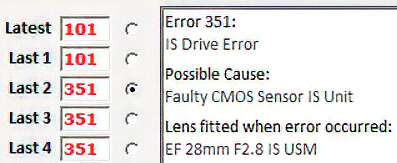
Error History Tab: Displays Error 351 — Possible cause: Faulty CMOS Sensor Unit. |
The live data pinpoints the thermal failure immediately, confirming the cause of the Error 351 shutdown.
⬅️ Done? Use your browser’s back arrow to return.
Canon EOS R10 General Tab | Compact APS-C Mirrorless Bench Information
General
Quick Information Check & the Camera FAX Report

With the General Tab, you can:
⚠️ Important: Always use a valid Canon serial number. Entering an invalid number may cause serious issues with your camera.
Camera Menu & Shutter Count Apps
The number shown in the Camera Menu and by Shutter-Count apps is the Total Release Count.
✅ YES — You can change the Total Release Count on this model.
⬅️ Done? Use your browser’s back arrow to return.
Canon EOS R5 General Tab | Professional Workhorse Bench Information
General
Quick Information Check & Camera FAX

With the General Tab, you can:
⚠️ Important: Always use a valid Canon serial number. Entering an invalid number may cause serious issues with your camera.
Camera Menu & Shutter Count Apps
The number shown in the Camera Menu and by Shutter-Count apps is the Total Release Count.
✅ YES — You can change the Total Release Count on this model.
⬅️ Done? Use your browser’s back arrow to return.
The Temperature Plugin
In the Canon R5 Professional Advanced Software
Solve Hard-to-Troubleshoot Temperature Related Problems

With the Temperature Plugin, you can:
Here are a few temperature-related issues
Troubleshooting Example
| Tools |
Troubleshooting |
|
Temperature Plugin
|
Temperature Plugin: Shows real-time sensor readings against normal room temperature (23°C):
|
|
Error Code Tab
|
Error History Tab: Displays Error 351 — Possible cause: Faulty CMOS Sensor Unit. |
The live data pinpoints the thermal failure immediately, confirming the cause of the Error 351 shutdown.
⬅️ Done? Use your browser’s back arrow to return.